
Project Info Panel
Info side menu
Section titled “Info side menu”This side menu displays details about the project:
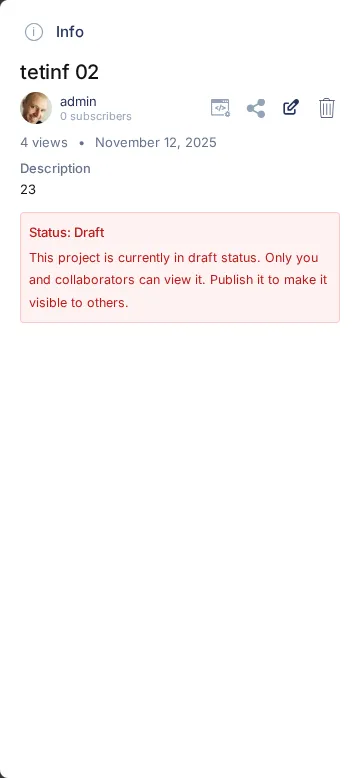
GW4 development project, September 2026. This example is a draft; a published project does not show the draft warning.
-
This section provides high-level information:
- Title
- Project owner
- Number of views, upload date, and tags list
- Description
-
When you have editing permission, use the Edit (pencil) or Delete (trash) icon beside the author. The current interface shows these directly:
- Edit Project Details: Opens the side menu panel for editing all user-entered project details. (See more details below)
- Delete Project: Removes the project from the platform.
-
Embed and Share options:
-
Embed: Opens a window with code you can copy and paste into your website. This code displays the project in a window on your webpage. Adjust
widthandheightvalues for desired size.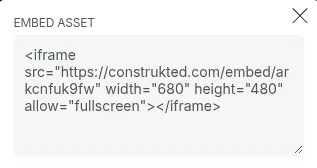
-
Share: Opens a window with social network buttons to post your project link. You can also copy the project URL directly into your favorite social network.

-
Project Details Editor
Section titled “Project Details Editor”Each project has a distinct set of details.
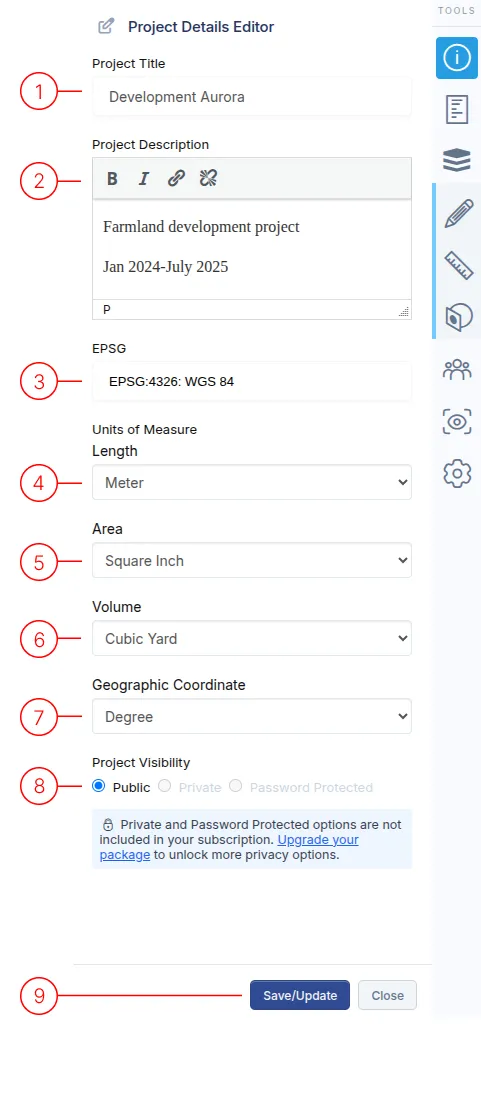
1. Title
Section titled “1. Title”The main name of your project.
2. Description
Section titled “2. Description”Add some descriptive text about the project. You can use bold, italics and you can hyperlink to external links.
3. EPSG
Section titled “3. EPSG”This field selects the coordinate system used for displaying data in the project. Only applies to data which is relevant to CRS. Start typing in the query field and a list will be displayed and filtered based on your text.
4. Length Unit of Measure
Section titled “4. Length Unit of Measure”This field selects the length unit used for displaying data in the project. Only applies to the output from length measurement tools.
5. Area Unit of Measure
Section titled “5. Area Unit of Measure”This field selects the area unit used for displaying data in the project. Only applies to the output from area measurement information.
6. Volume Unit of Measure
Section titled “6. Volume Unit of Measure”This field selects the volume unit used for displaying data in the project. Only applies to the output from volume measurement tools.
7. Geographic Coordinate Unit of Measure
Section titled “7. Geographic Coordinate Unit of Measure”For lat/long coordinates, you can choose between Decimal and Degrees/Minute/Second formatting.
8. Project Access
Section titled “8. Project Access”Choose how visitors can view a published project:
- Public: Anyone can view the project. It can appear in the public gallery and search results.
- Private: Anyone with the project link can view it without signing in. The project stays out of the public gallery and search results. This is link-only visibility, not a restriction to named users. Private projects require a qualifying plan.
- Password: Visitors need both the project link and the current password. The project stays out of the public gallery and search results.
For Password access, enter a nonempty password before saving. Changing the password replaces the previous password. Visitors who already opened the project must enter the new password when they reload it. Project owners and invited collaborators can view the project without entering its password.
A Draft project remains available only to its owner and invited collaborators. Choosing Private does not make a draft available through its link.
The project’s embed follows the same access setting: Private embeds open through the link, and Password embeds require the current password.
9. Save/Update/Close
Section titled “9. Save/Update/Close”Select Save/Update to save the project details. Reopening either project edit form shows the current access setting and password. Saving without changing them preserves those settings and the project URL.